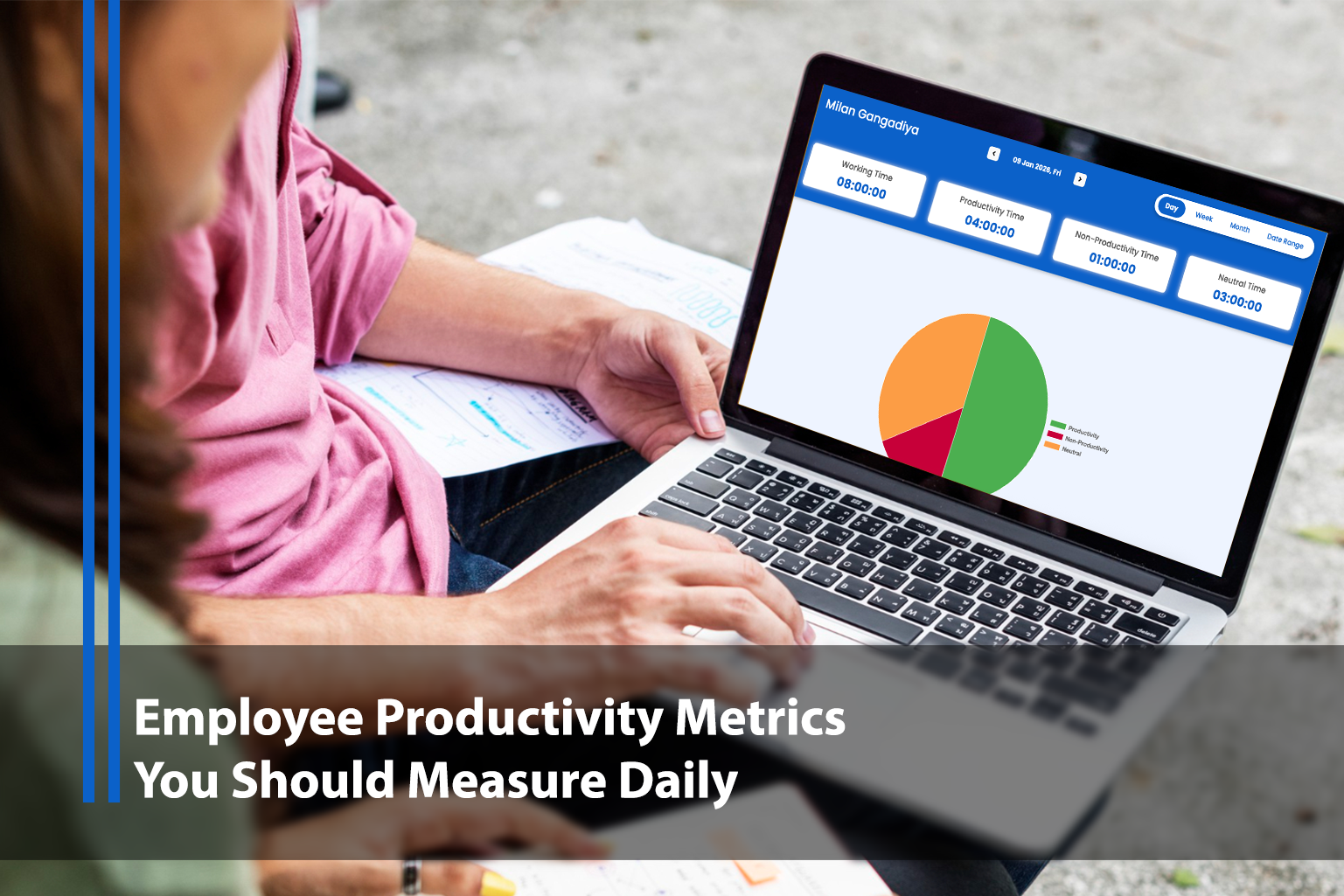
Remote work and hybrid teams have changed one big thing for managers: you can't "see" progress the way you could in a shared office. That gap is exactly why screenshot monitoring software has become part of modern operations—especially for distributed teams handling client work, time-based billing, or sensitive data.
But here's the real truth: screenshot monitoring only improves productivity when it's implemented ethically, transparently, and with clear goals. If it's used like "bossware," it can backfire—reducing morale and increasing stress. In fact, ADP Research has reported that workers who feel constantly watched also report being more stressed and less productive.
So how do you use employee screenshot monitoring to create better outcomes (quality + speed + accountability) without turning your workplace into a surveillance zone? Let's break it down in a practical, informative way.
What Is Screenshot Monitoring?
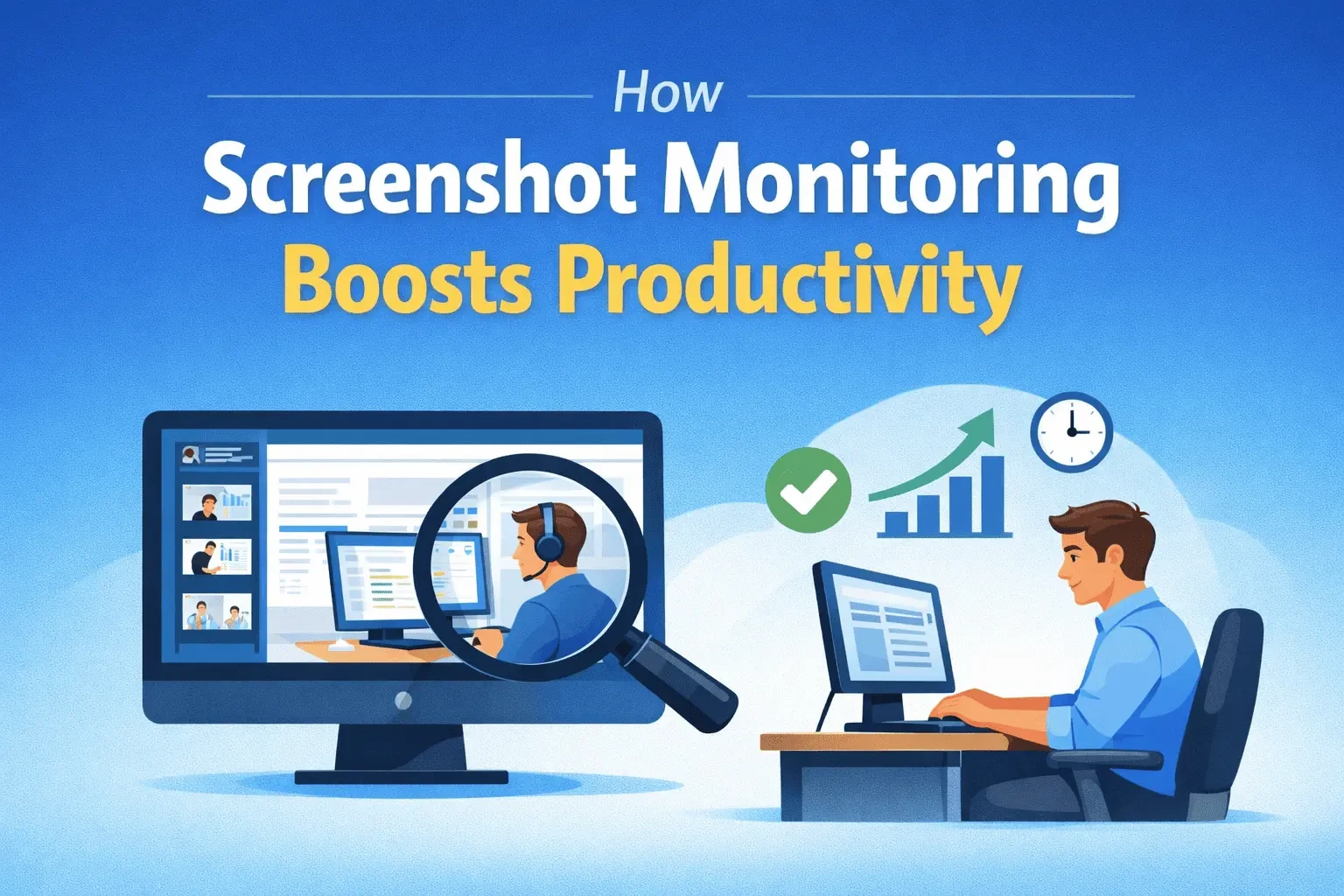
Employee screenshot monitoring is a feature inside an employee activity tracking or productivity platform that captures periodic screenshots of a user's work screen (often at intervals like every 5–10 minutes). Typically, it's paired with:
- time tracking
- app/website usage
- activity levels (mouse/keyboard activity)
- project/task tagging
- optional blurring of sensitive content
It's most common in work from home monitoring, agencies, outsourced teams, support operations, and companies that bill clients by the hour.
Important point: screenshot monitoring isn't "good" or "bad" by itself. The outcome depends on why you use it and how you roll it out.
Why Teams Use Screenshot Monitoring in the First Place
Employee monitoring is rising across remote/hybrid environments—some sources estimate a large share of employers monitor remote or hybrid workers. In the UK, research highlighted by the Chartered Management Institute has also pointed out that around a third of employers use "bossware," and many managers worry it undermines trust.
That tension creates a simple requirement:
If your monitoring increases clarity and reduces friction, it helps productivity.
If it increases fear and ambiguity, it hurts productivity.
9 Real Ways Screenshot Monitoring Improves Team Productivity
1) Creates visibility for remote work (without constant meetings)
When managers can't "see" work, they often compensate with extra check-ins, follow-ups, and status meetings. A smart productivity monitoring tool reduces that noise. A quick glance at work patterns can replace 3–4 back-and-forth messages.
Result: less micromanagement, fewer meetings, more deep work time.
2) Identifies time leaks (context switching, distractions, tool overload)
Screenshot evidence + app/website usage quickly shows patterns like:
- too many tools for one workflow
- repeated rework
- frequent context switching
- time spent on non-work sites during work blocks
Result: you can fix systems instead of blaming people.
3) Improves accountability for time-based billing and client projects
For agencies, freelancers, and service teams, screenshots provide "proof of work," especially when clients question hours.
Result: fewer disputes, stronger trust, faster invoicing cycles.
4) Reduces "fake productivity"
Some teams look busy (messages, meetings, tabs open) but don't ship outcomes. Screenshots help validate whether time is translating into real deliverables.
Result: performance conversations become fact-based, not opinion-based.
5) Helps new hires ramp faster (process clarity)
When onboarding, teams waste time explaining "how we do things" repeatedly. With permission-based, purpose-driven monitoring, you can spot:
- where a new hire is stuck
- whether they're using the right tools
- if they're following the correct workflow
Result: faster ramp, fewer repeated training calls.
6) Improves focus by making priorities visible
When someone sees their own weekly patterns—how much time went into actual work vs. switching apps—it often triggers self-correction (when used transparently).
Result: employees manage themselves better.
7) Strengthens security and compliance (when minimized properly)
Screenshots can help detect risky behaviors like:
- sensitive data being copied to personal tools
- unauthorized access patterns
- policy violations
But this must be handled carefully and proportionately. Guidance around monitoring frequently emphasizes purpose limitation, transparency, and data minimization.
Result: fewer incidents, cleaner audits (if implemented responsibly).
8) Makes performance reviews more objective
The best employee activity tracking is not about "gotcha moments." It's about patterns:
- consistency
- output vs. time spent
- improvement over weeks/months
Result: fairer reviews, clearer coaching.
9) Enables better workload distribution
Screenshots and activity trends can show overloaded employees vs. underutilized ones.
Result: fewer burnouts, smoother delivery timelines.
The "Trust Factor": Why Screenshot Monitoring Can Backfire
If employees feel the tool is used to punish, it can cause stress and reduce productivity. That's why many regulators and data protection authorities emphasize transparency and fairness, especially when monitoring happens at home (where privacy expectations are higher).
So the question isn't "Should we monitor?"
It's: Can we monitor in a way that respects people and still improves outcomes?
Best Practices to Implement Screenshot Monitoring the Right Way
1) Define a clear purpose (and write it down)
Examples of valid purposes:
- time-based billing verification
- productivity insights to improve workflow
- security/compliance for sensitive environments
Avoid vague purposes like "just to watch."
2) Be transparent from day one
Tell employees:
- what is captured (screenshots? apps? URLs?)
- when it's captured (working hours only)
- who can view it (manager? HR? admin?)
- how long data is kept
- what it will NOT be used for
Transparency is a core requirement in most modern privacy frameworks.
3) Use minimization settings (blur + lower frequency)
Productive setups often include:
- blur sensitive info (emails, passwords, banking)
- capture less frequently (not every minute)
- exclude private apps/websites (where appropriate)
- allow "pause" for breaks or personal tasks
4) Do an impact assessment (especially for regulated regions)
In the UK/EU context, the ICO provides practical guidance and templates for monitoring at work impact assessments, and emphasizes assessing necessity, proportionality, and risk.
Even if you're outside the UK/EU, the same discipline helps you avoid trust and legal problems.
5) Measure outcomes, not screenshots
Set success metrics like:
- improved task cycle time
- fewer missed deadlines
- reduced rework
- fewer client hour disputes
- better focus time blocks
- reduced overtime spikes
If your only metric is "more hours tracked," you'll get bad behavior.
What to Look for in Screenshot Monitoring Software
If you're comparing a productivity monitoring tool (for example, TeamTreck or similar platforms), prioritize features that support trust + usefulness:
- configurable screenshot intervals
- blur/partial capture for privacy
- app & website categorization
- project/task-based time tracking
- role-based access (who can see what)
- clear employee visibility (no stealth mode)
- secure storage + retention controls
- reporting focused on patterns and outcomes
Final Thoughts
Screenshot monitoring can absolutely improve productivity—but only when it's implemented as a management tool for clarity, not a surveillance tool for control.
Used correctly, screenshot monitoring software helps teams:
- reduce wasted time,
- improve accountability,
- optimize workflows,
- support remote delivery,
- and keep projects on track.
Used poorly, it can increase stress and reduce performance—exactly the opposite of what you want.